

Online Banking
for Members
At OneAZ Credit Union, we've designed our online banking to be more than just a service—it's a complete, secure, and intuitive platform built to empower you.
Manage Your Money Your Way
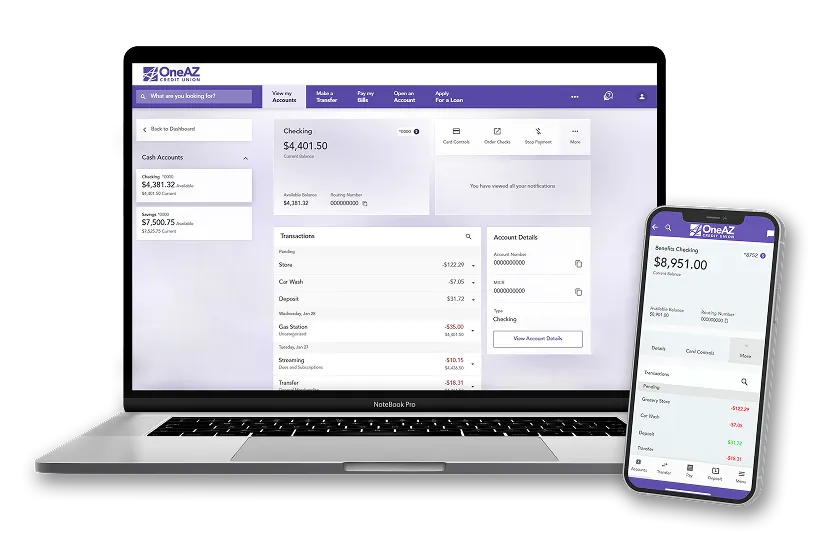
Our online and mobile banking app is your personal financial branch, accessible 24/7. It's packed with features to make your life easier and your money more manageable.
Download the OneAZ Mobile Banking app


Instant Account Access
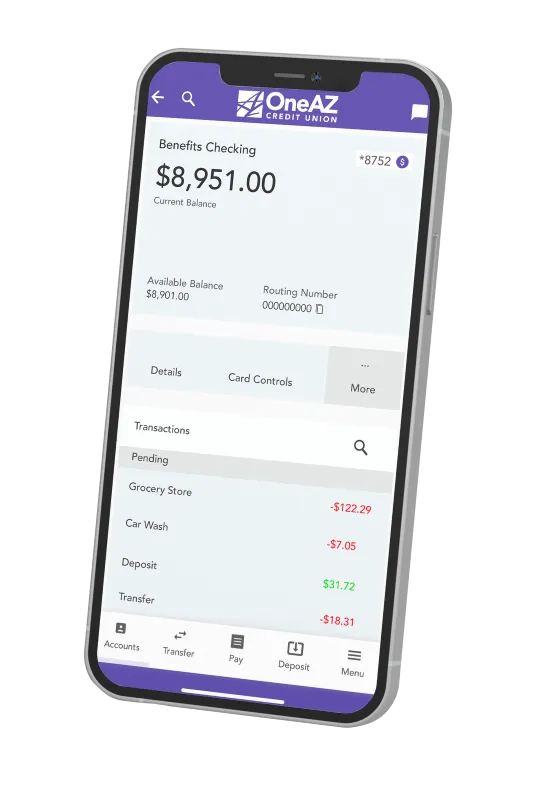
Check balances, review transaction history, and get a clear picture of your finances anytime, anywhere.
Secure Mobile Check Deposit
Skip the trip to a branch! Simply use your phone's camera to securely deposit checks in minutes.
Card
Controls
Gain peace of mind by instantly locking or unlocking your debit card and setting travel notices directly from the app.
Real-time
Alerts
Customize alerts for specific transactions, balance changes, or withdrawals, keeping you informed and secure.

Easy-to-Follow Guides for a Seamless Experience
We're dedicated to making your digital banking experience as smooth as possible. Here are some quick guides to get you started:

Setting Up Online and Mobile Banking
To begin, visit our website and click the "Register with Online Banking" button. Follow the prompts to create your username and password. Once enrolled, download the OneAZ mobile app from your device's app store and log in with your new credentials.
Register Now
Making a Mobile Deposit
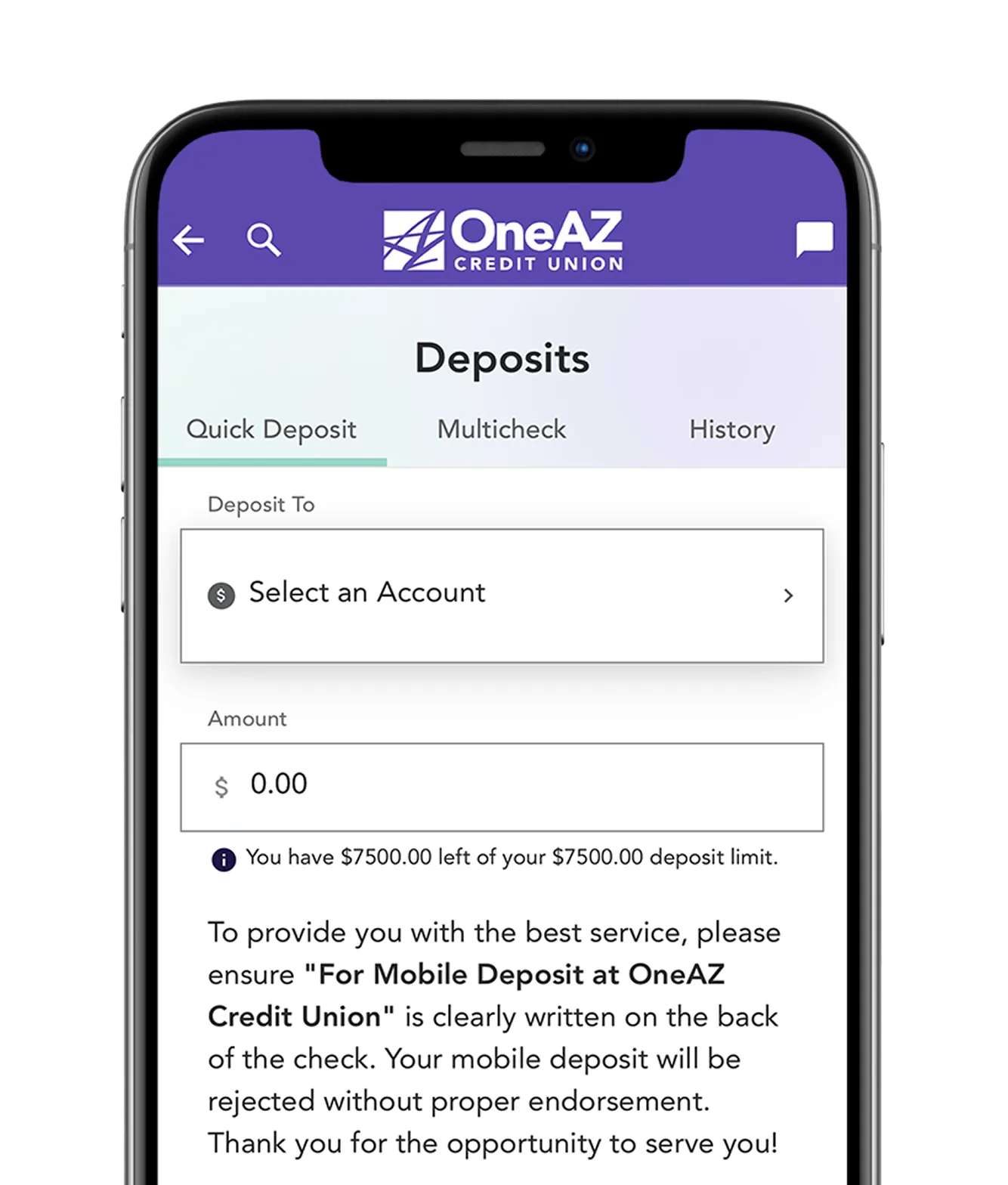
Tap "Deposit" in the app, select the account, enter the check amount, and take photos of the front and back of your endorsed check. Confirm the details, and the funds will be deposited into your account.
Learn More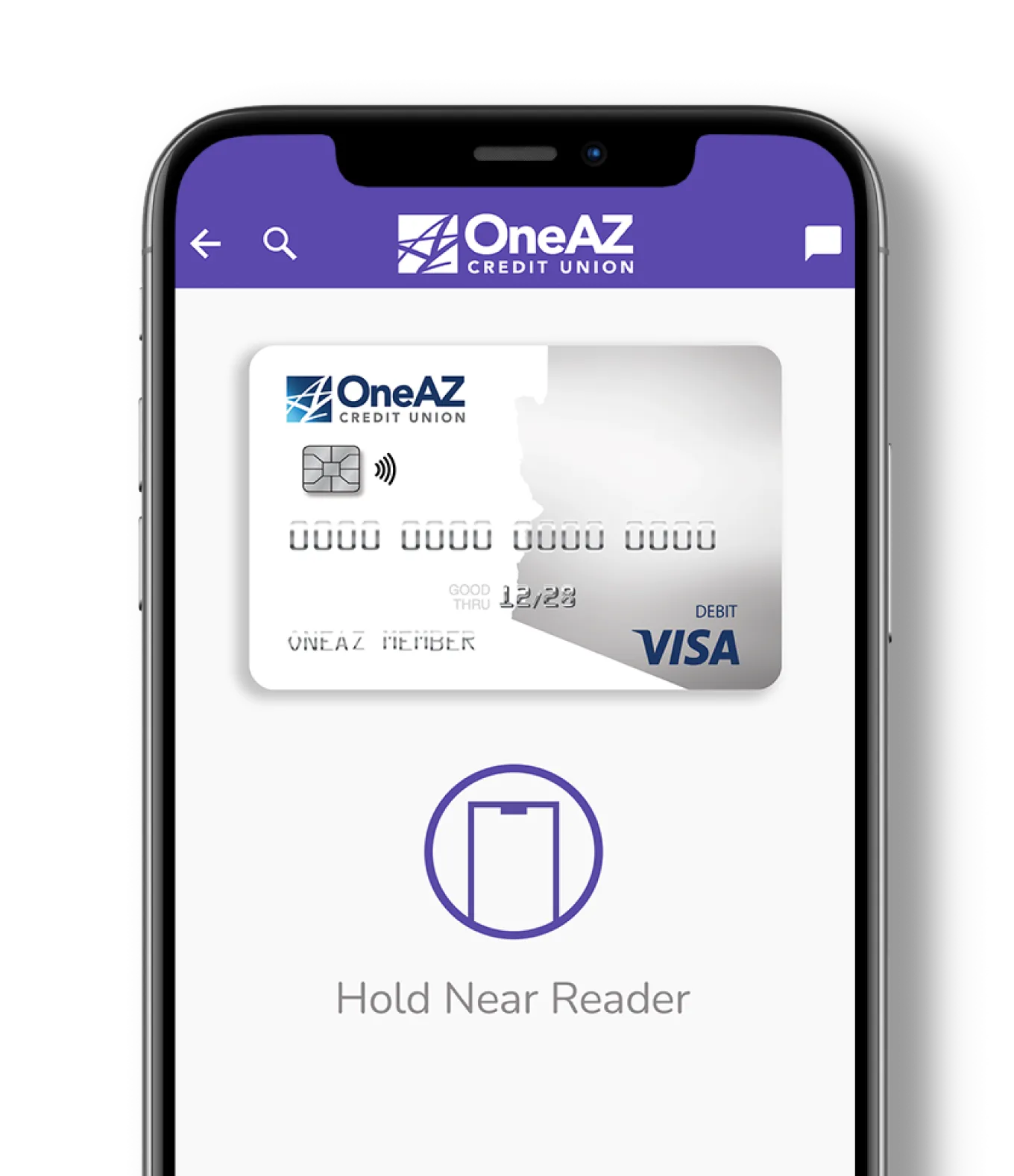
Features
Need to deposit a check remotely? Snap a photo with the OneAZ Mobile Banking app. Mobile check deposit allows members to deposit checks from anywhere, at any time.
Use your OneAZ debit or credit card with Apple Pay™, Google Pay™, and Samsung Pay™!
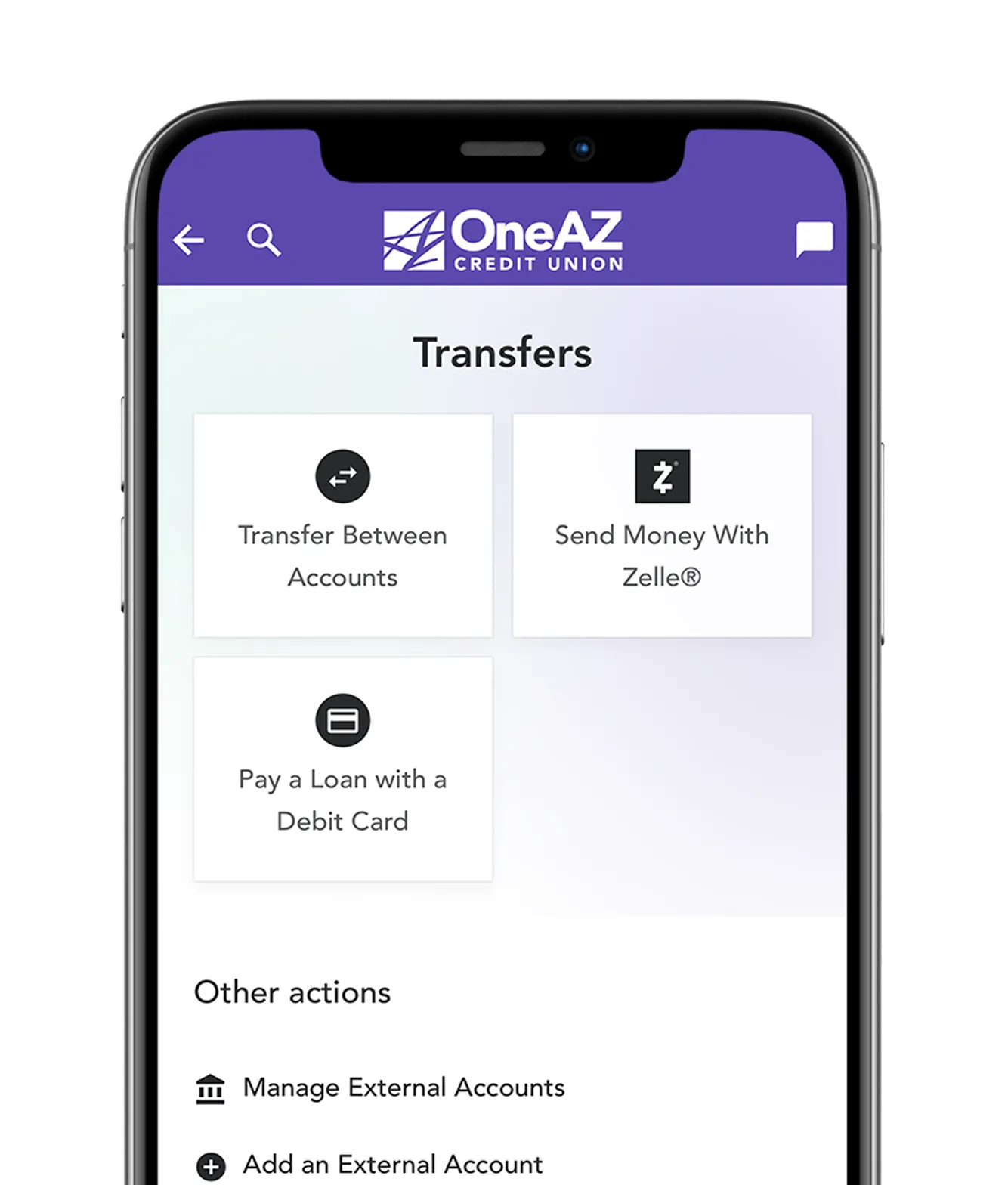
Transfer money between your checking and savings account with just a few taps. Connect your external bank accounts with account aggregation to seamlessly monitor all of your account balances in one location.
How do I register for advanced card controls?
Learn how to set up card controls.
Safe & secure banking.
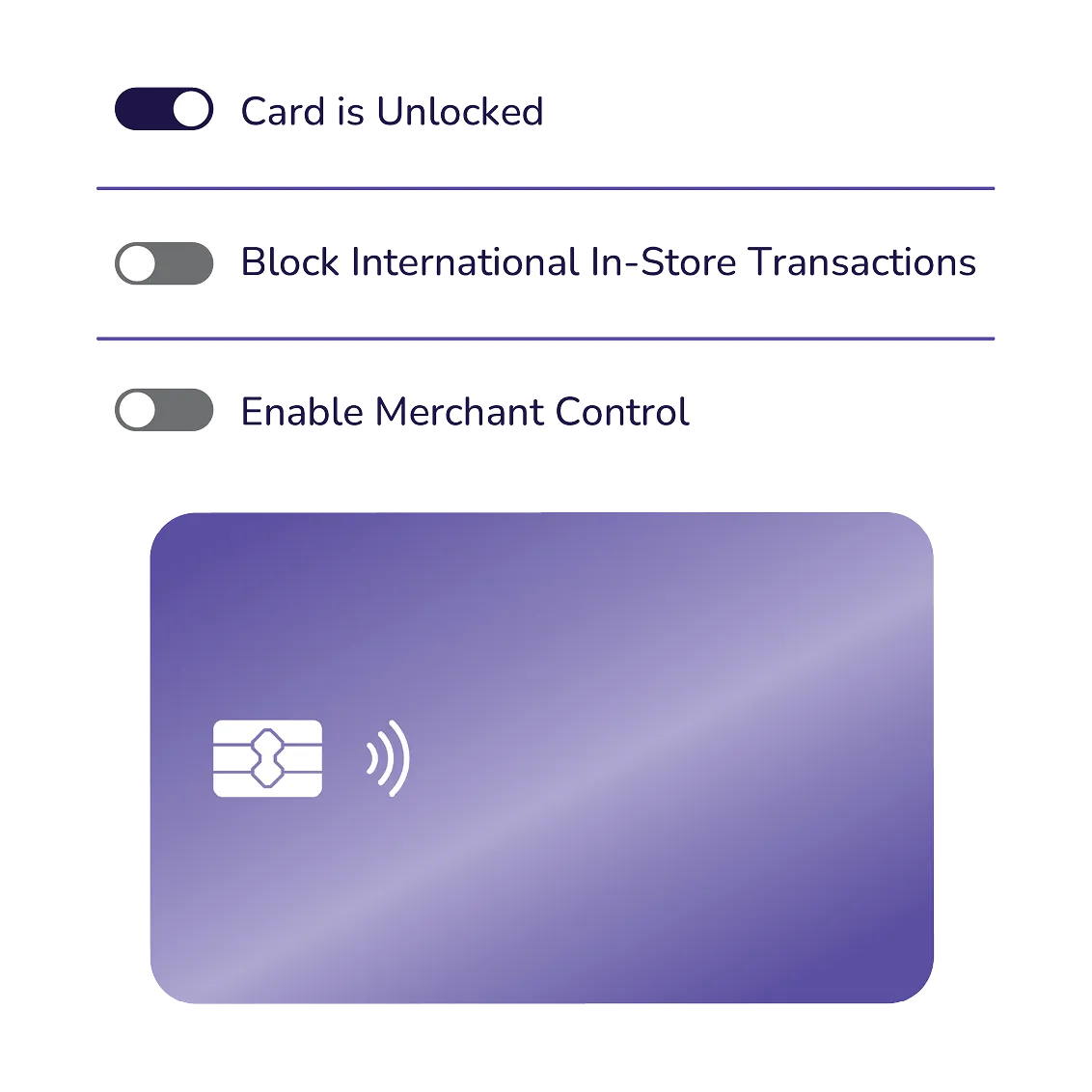
Take control of your banking with card controls. Instantly disable your card with one swipe in Online Banking.
Whether you lost your card or see suspicious charges, you are in control.
How to set up online bill payments.
Do it all with the
OneAZ Mobile Banking app.

Deposit
checks
Transfer
funds
Pay
your bills
Chat with an
associate
Locate
an ATM
Download the OneAZ Mobile Banking app


Do it all with the
OneAZ Mobile Banking app.
Deposit checks
Transfer funds
Pay your bills
Chat with an associate
Locate an ATM
Download the OneAZ Mobile Banking app
Frequently Asked Questions
Not finding what you’re looking for? Please connect with our Member Care Center Monday through Friday from 8:00 AM to 6:00 PM through Live Chat, Secure Message, or phone at 844.663.2928.
You have the option to receive eStatements or paper statements. If you are not enrolled in Online and Mobile Banking, you will default to paper statements.
Once you are enrolled in Online and Mobile Banking, click on the three dots in the blue navigation bar and select Documents and Statements. Select Register and let us know if this is for a Personal Account or a Business Account.
Complete the required fields and select Next. Review the Consent to Electronic Documents and select the checkbox to confirm you have read and agree to the terms outlined. Then select Finish. This will complete your eStatement enrollment.
To turn eStatements off, click on the three dots in the navigation bar, select Documents and Statements, select Settings. From here, you can select the Discontinue box and click Submit.
You may not be able to log in to Online Banking for the following reasons:
Password
If you have forgotten your password or have attempted the incorrect password several times, you will need to reset your password.
Passwords must meet the criteria required by the Credit Union. All passwords are case sensitive. Industry best practices and information security standards recommend frequent password changes and we encourage our members to consider these security practices.
Security
If you are unable to access Online Banking, it may indicate a problem accessing secured websites. Both your browser and Internet service provider must support secured sites. Use your browser settings section to verify your security settings. An upgrade to your browser, such as Microsoft® Internet Explorer or Firefox, may be necessary.
Firewalls/Proxy Servers
If you are using one of the recommended browsers and are still experiencing a problem, the problem may lie with your own Internet service provider (ISP). This is particularly common with employer-based access to the Internet. Your employer may have firewalls, proxy servers or other equipment that may prevent access to secured sites. Contact your company's Data Processing Department or Information Technology Department regarding the problem or try to access Online Banking from another location. If you are running a personal firewall at home, you may want to temporarily disable it to determine if it is blocking access to Online Banking.
Cookies
If you receive the following message after logging in successfully, all further processing and/or access to any portion of Online Banking during this session will be blocked: "Internet Account Access Session Error."
Return to the login screen to start a new session. This error indicates that you did not accept one or more cookies. To enter the secured encrypted site, you must accept the cookies. Since there are several cookies within Online Banking, it is suggested that you disable the cookie alert within your browser while viewing account information. An upgrade to your browser, such as Microsoft Internet Explorer or Firefox, may be necessary.
JavaScript
If you are prompted with a dialog box that asks you to re-enter your password (after initially entering your account number and OneAZ Credit Union Online password), your browser may not support JavaScript, or JavaScript may not be enabled. Use the browser settings section to verify your JavaScript settings. An upgrade to your browser, such as Microsoft Internet Explorer or Firefox, may be necessary.
Online Banking can be accessed on the following operating system and browser versions:
- Microsoft Edge - 2 latest versions
- Apple Safari - 2 latest versions
- Apple iOS - 2 latest versions
- Google Chrome - 2 latest versions
- Google Android - 2 latest versions
- Mozilla Firefox - 2 latest versions
After enrolling on our website, use the username and password you created to log in for the first time on the web or in the mobile app.
Yes. Your security is our top priority. We use advanced encryption and multi-factor authentication to protect your information and transactions, ensuring a safe and trustworthy experience.
No. Our mobile app is completely free to download and use for all OneAZ Credit Union members.
On the login screen, click "Forgot Password." You will be prompted to verify your identity before resetting your password.
Get Started Today!
Ready to simplify your financial life? Our secure online banking login is your gateway to a better way to bank. Join the thousands of members who trust OneAZ to be their partner in their financial journey.